The short version
- Decide who owns the tenant and how admin accounts work before you sign up. It is the hardest thing to fix later.
- For most businesses of 10-50 people, Business Premium is the plan that makes the rest of this guide possible.
- Turn security on before you add your team, not after the first incident.
- Build a simple SharePoint structure before anyone moves files in, or everything ends up in one person's OneDrive.
Microsoft's setup wizard will have you sending email from Microsoft 365 in an afternoon. That's the problem. It gets you running without asking the questions that matter, and the shortcuts it allows are the ones we spend days unpicking when we take a tenant over a year or two later.
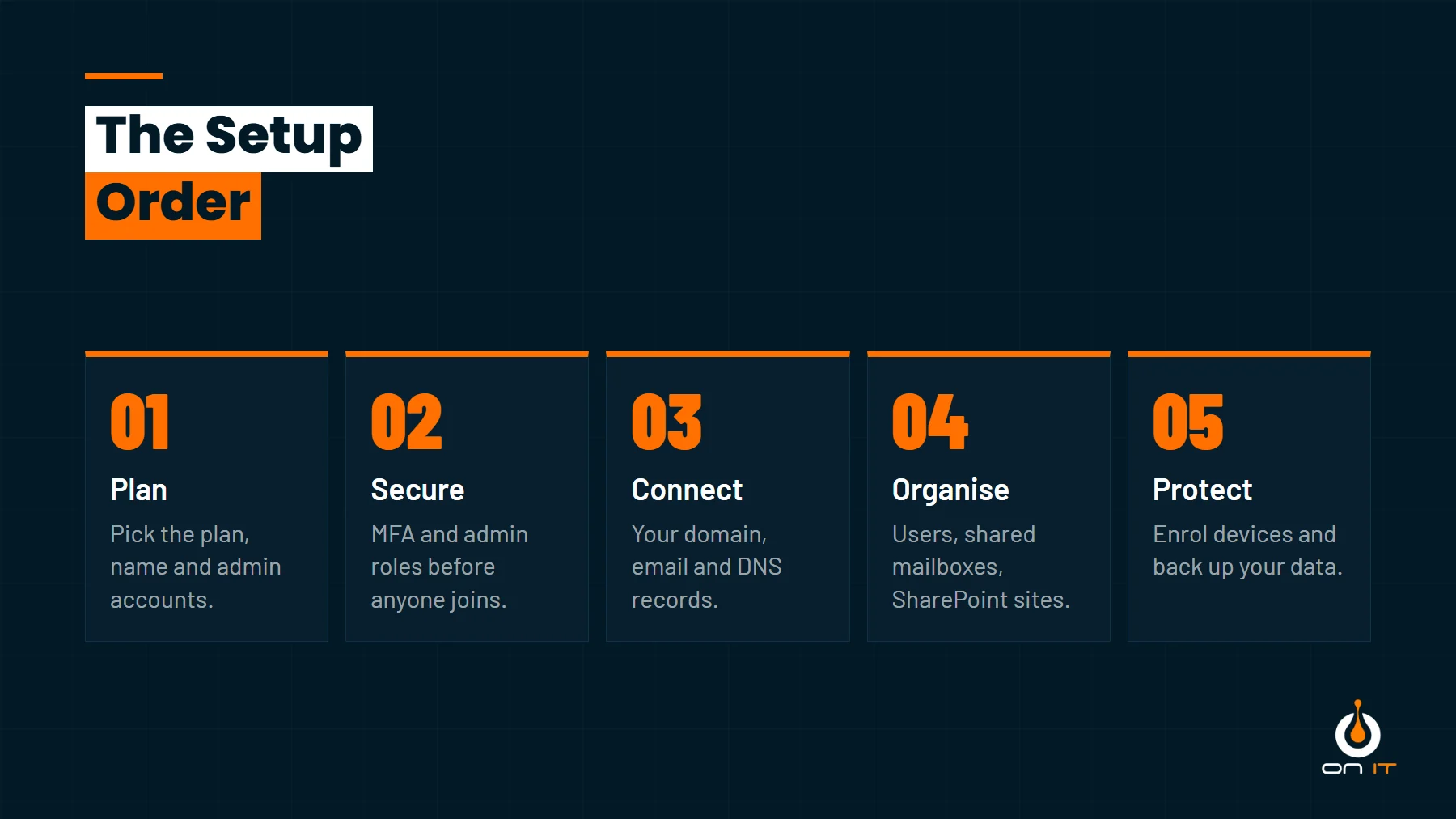
This guide is the order we set Microsoft 365 up in for small businesses, from the decisions to make before you sign up to backing it all up at the end. Follow it from scratch, or use it to check a tenant you already have. Most of the work is in the first three sections.
Decide three things before you sign up
The sign-up form asks for a company name and an email address and gets out of your way. Pause on these first, because none of them are easy to change later.
Your tenant name
You'll be asked for a name that becomes yourname.onmicrosoft.com. It shows up in SharePoint addresses and in places your staff will see, and the first one you choose stays with the tenant permanently. You can add another and make it the default, but the original never goes away. Use your company name, spelled out, not "test" or the name of whoever happened to be setting it up.
Who owns it
The tenant and its billing should belong to the business, not to a person. Sign up with a company address on a domain you control, never someone's personal Gmail or Hotmail, and make sure the payment method and invoices are in the company's name. We've had to recover access to tenants where the only admin had left the business, or where the admin account was tied to a personal email address. Getting that access back means proving to Microsoft that you own the domain, and it is never quick.
Who will look after it
Be honest about whether someone in the business will own Microsoft 365 week to week: new starters, leavers, licences, the odd security alert. If nobody will, plan for that now rather than discovering it when something goes wrong.
Pick the right plan
The three business plans that matter for most small businesses are Business Basic, Business Standard and Business Premium. All three cover up to 300 users. At the time of writing (October 2026), after Microsoft's July price changes, the UK prices on an annual commitment are about £5.40, £10.80 and £16.90 per user per month before VAT. Check Microsoft's current comparison page before you buy, as prices and inclusions change.
- Business Basic gives you email, Teams, SharePoint and OneDrive, with the web and mobile versions of the Office apps only.
- Business Standard adds the desktop Office apps.
- Business Premium adds the security tools: Conditional Access, Intune to manage devices, Defender for Business on every laptop, and sensitivity labels for protecting files.
For almost every business of 10 to 50 people, we recommend Business Premium. The gap to Standard is about £6 per person per month, and it buys the controls this whole guide relies on. Without them you can't require MFA in a sensible way, can't stop company data being opened on an unmanaged home PC, and can't wipe a laptop that gets left on a train. A mix is fine where it makes sense, for example Business Basic for staff who only need email on a shared device, and our licensing team can help you get it right.
Create the tenant and get admin accounts right
Admin accounts are where we find the most problems. The usual picture when we take over a small business's Microsoft 365 is several global admins, often including the owner's everyday account, and none of them with MFA. Every one of those is a key to the whole business, and the everyday ones are the accounts most likely to be phished.
Set it up like this instead:
- Keep everyday accounts as standard users. That includes yours. Admin rights are for admin accounts.
- Create a separate admin account for whoever manages Microsoft 365, such as
admin.jane@, with no mailbox and no Office licence. - Add two emergency access accounts, sometimes called break-glass accounts. Microsoft recommends two, with very long passwords stored somewhere safe offline, so you can always get back in if the normal route fails.
- Use the smallest role that does the job. Someone who resets passwords needs Helpdesk Administrator, not Global Administrator. Aim for no more than a handful of global admins in total.
Turn security on before you add your team
It's far easier to add people to a secure tenant than to secure one people are already using. New tenants start with Microsoft's security defaults switched on, which require everyone to register for MFA. Leave them on until you replace them with something better. The second most common thing we find is security defaults switched off to "fix" a problem years ago and never switched back on.
With Business Premium, replace security defaults with Conditional Access policies that you control:
- Require MFA for everyone, using the Microsoft Authenticator app rather than text messages.
- Block the older sign-in methods that can't do MFA.
- Require stronger checks for admin accounts.
- Only allow company data on devices you manage, once devices are enrolled (later in this guide).
While you're in there, turn off the setting that lets users consent to third-party apps reading their mailbox, and set external sharing in SharePoint to something sensible rather than "anyone with the link". Our tenant hardening work goes through the full list.
Already up and running and not sure what's switched on? Our free Microsoft 365 security report checks 95+ settings and tells you plainly what needs fixing.
Get your free reportConnect your domain and set up email records
Add your own domain in the admin centre and Microsoft will give you the DNS records to add where your domain is hosted. Some providers can add them automatically. You need the records that route your email (MX), let Outlook find your mailbox (Autodiscover), and the three that prove your email is genuine: SPF, DKIM and DMARC.
Don't skip the last three. Without them your invoices are more likely to land in junk, and criminals can send email that looks like it came from you. We've written a separate guide to getting SPF, DKIM and DMARC right. DKIM in particular has to be switched on in Microsoft 365 for each domain, and it's often forgotten.
Add users, shared mailboxes and licences
Only once the security is in place should you add your team. Give each person their own account and licence, and don't share logins. A shared login can't have MFA in any useful way, and you lose any record of who did what.
For addresses several people need, such as info@, accounts@ or sales@, use a shared mailbox. It doesn't need a licence while it stays under 50 GB, people open it from their own Outlook, and access is easy to change when someone joins or leaves.
Write down how starters and leavers will be handled. For leavers, the safe order is to block sign-in, convert the mailbox to a shared mailbox (or forward it), move any important OneDrive files, then remove the licence. Deleting a user first is how businesses lose years of email.
Build a file structure before anyone moves files in
This is the step most businesses skip, and you can tell years later. The pattern we see again and again is everything in one person's OneDrive, or one huge SharePoint site called "Company" shared with everyone. It works until that person leaves, or until you need to keep HR files away from the rest of the team.
Spend an hour on a simple plan first:
- A SharePoint site or Team for each part of the business that works on its own files, such as operations, finance, sales or a large client.
- Private sites for sensitive areas: HR, directors, payroll. Access by invitation only.
- OneDrive for personal working files only. Anything the business would need if that person left belongs in SharePoint.
Each Team you create in Microsoft Teams gets its own SharePoint site behind it, so for most small businesses a Team per department is the simplest structure. Set the permissions up before the files arrive, then migrate. Our SharePoint and Teams setup service does exactly this, and a tidy structure now is also what makes Copilot safe to switch on later.
Enrol your devices
With Business Premium, enrol every laptop and desktop in Intune. New Windows devices can be set up through Autopilot, so a new starter opens the box, signs in, and gets the right settings, apps and security automatically. Existing devices can be enrolled where they are.
Once devices are managed, Intune keeps them encrypted and updated, Defender for Business watches for threats, and you can wipe a lost laptop remotely. It's also what lets the Conditional Access policy from earlier allow company data only on managed devices. Phones can be handled more lightly, with app protection that keeps work data inside Outlook and Teams without taking over someone's personal phone.
Back it up
Microsoft keeps the service running. Protecting your data from accidental deletion, a malicious leaver or ransomware is still your job, and the recycle bins only go back so far. Back up Exchange, OneDrive, SharePoint and Teams with a proper Microsoft 365 backup service. Test a restore once it's running, because a backup you've never restored from is a hope, not a plan.
Where to start
If you're starting from scratch, work through this in order and the hard decisions are made while they're still easy. If you already have a tenant, start with the admin accounts and MFA. They're the quickest checks, and they close the gaps attackers use most.
We set up and look after Microsoft 365 for small businesses across West Yorkshire. If you'd rather have it done properly the first time, or want someone to check what you've got, our Microsoft 365 management covers all of the above and keeps it that way.